 Italiano
 English
 Deutsch
 Français
 Español
 简体中文
简体中文 日本語
日本語How to Set Up Google Firebase on Your Application
Set up Cloud Sync on Fast Memo to keep your data synchronized across your devices, so you never lose what you jot down!
Prerequisites
A Google account. If you don't have one, follow these simple steps to create one: Create a Google account (opens in a new tab).
Steps
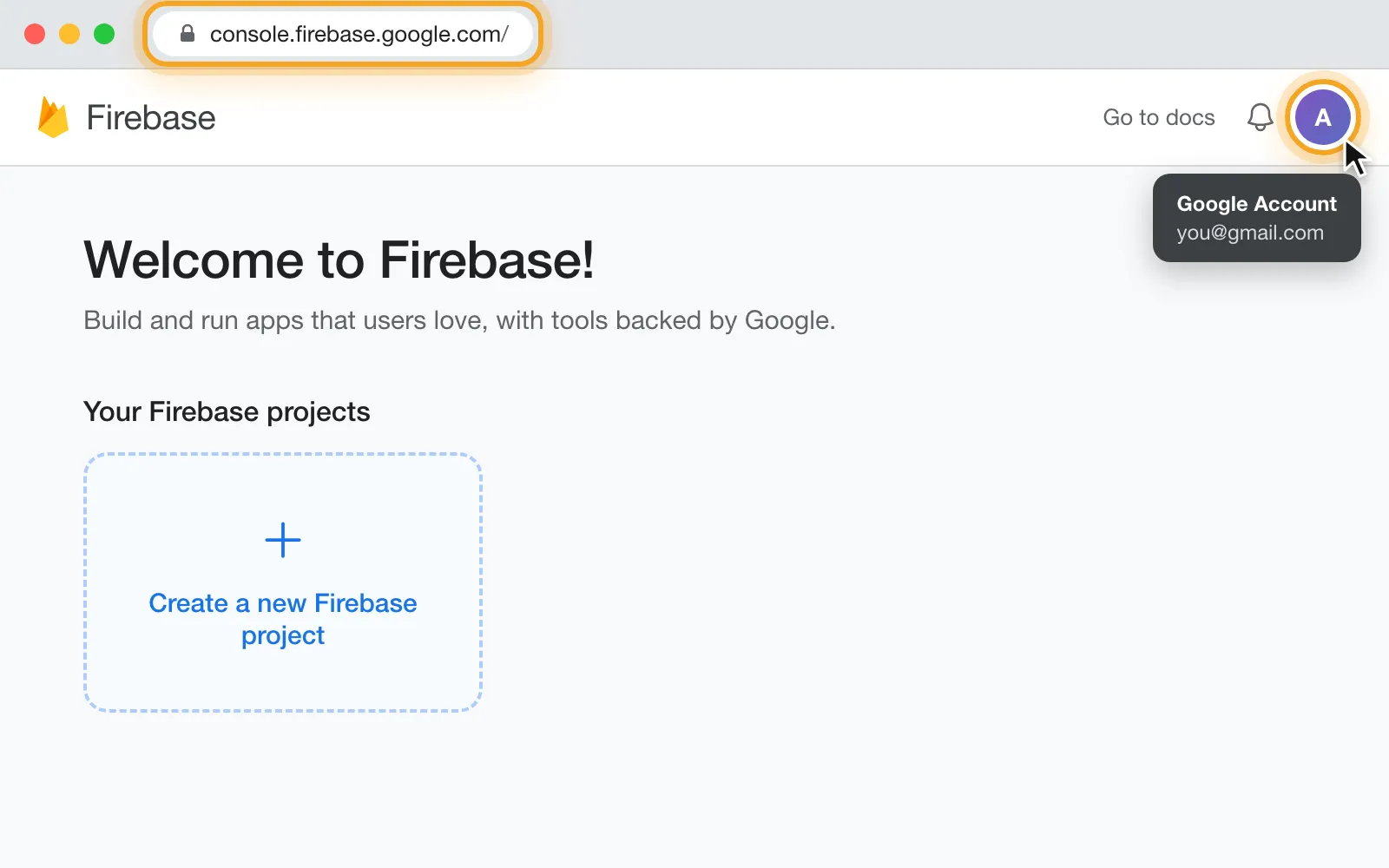
Go to the Firebase console (opens in a new tab) and sign in with your Google account.
 (opens in a new tab)
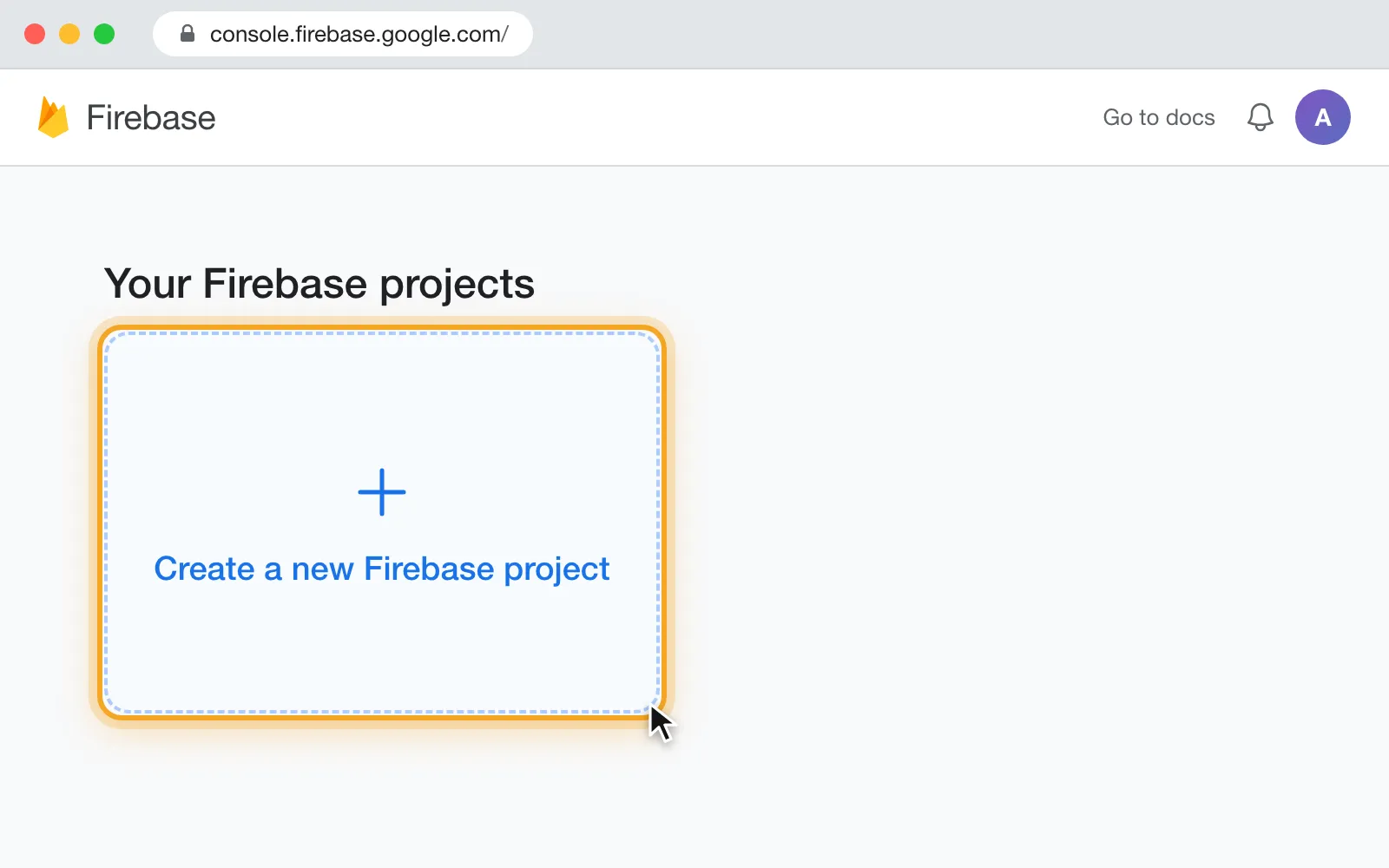
Click “Create a new Firebase project”.
 (opens in a new tab)
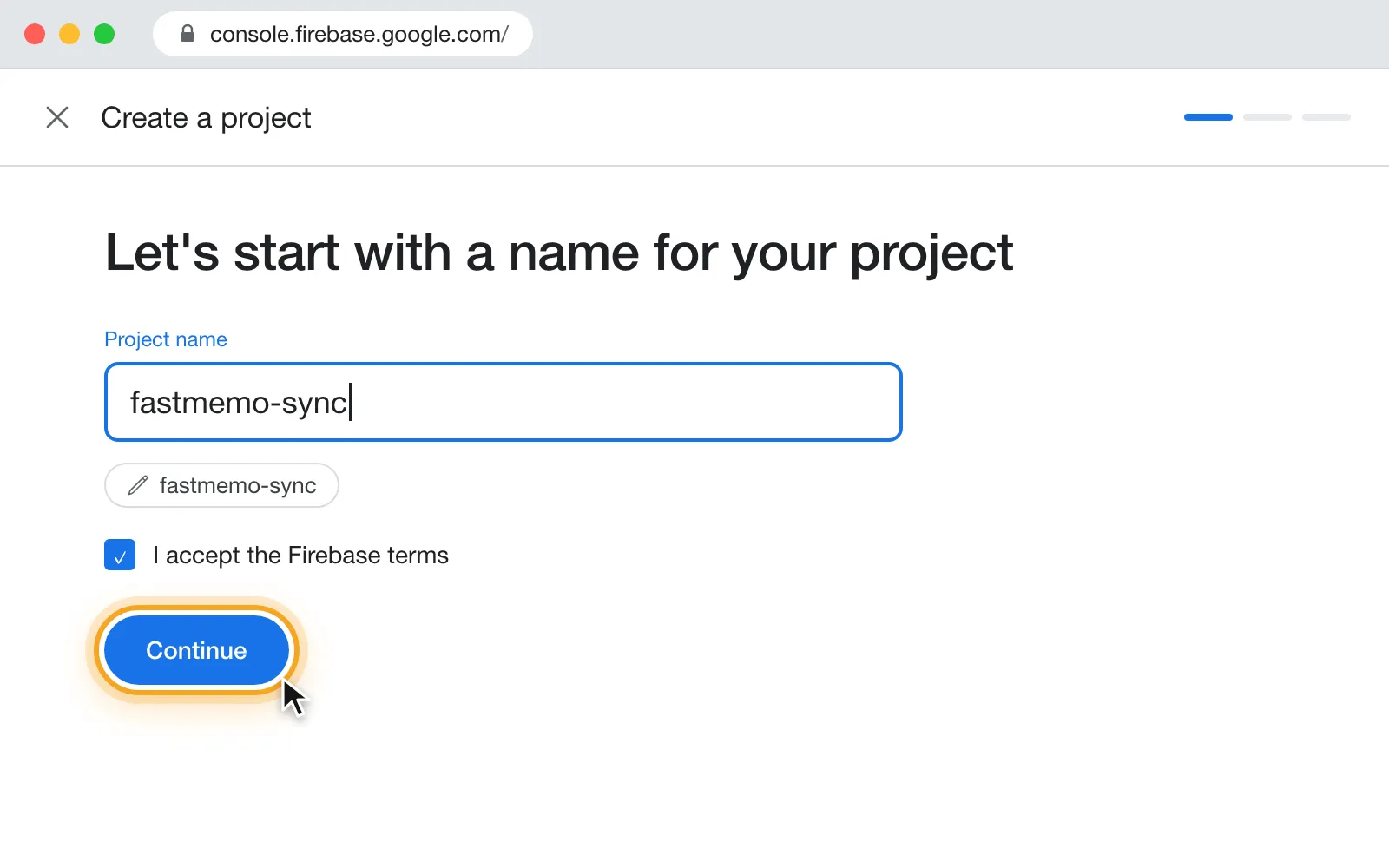
Enter a name for your project (anything you like, e.g. “fastmemo-sync”), tick “I accept the Firebase terms” and click “Continue”.
 (opens in a new tab)
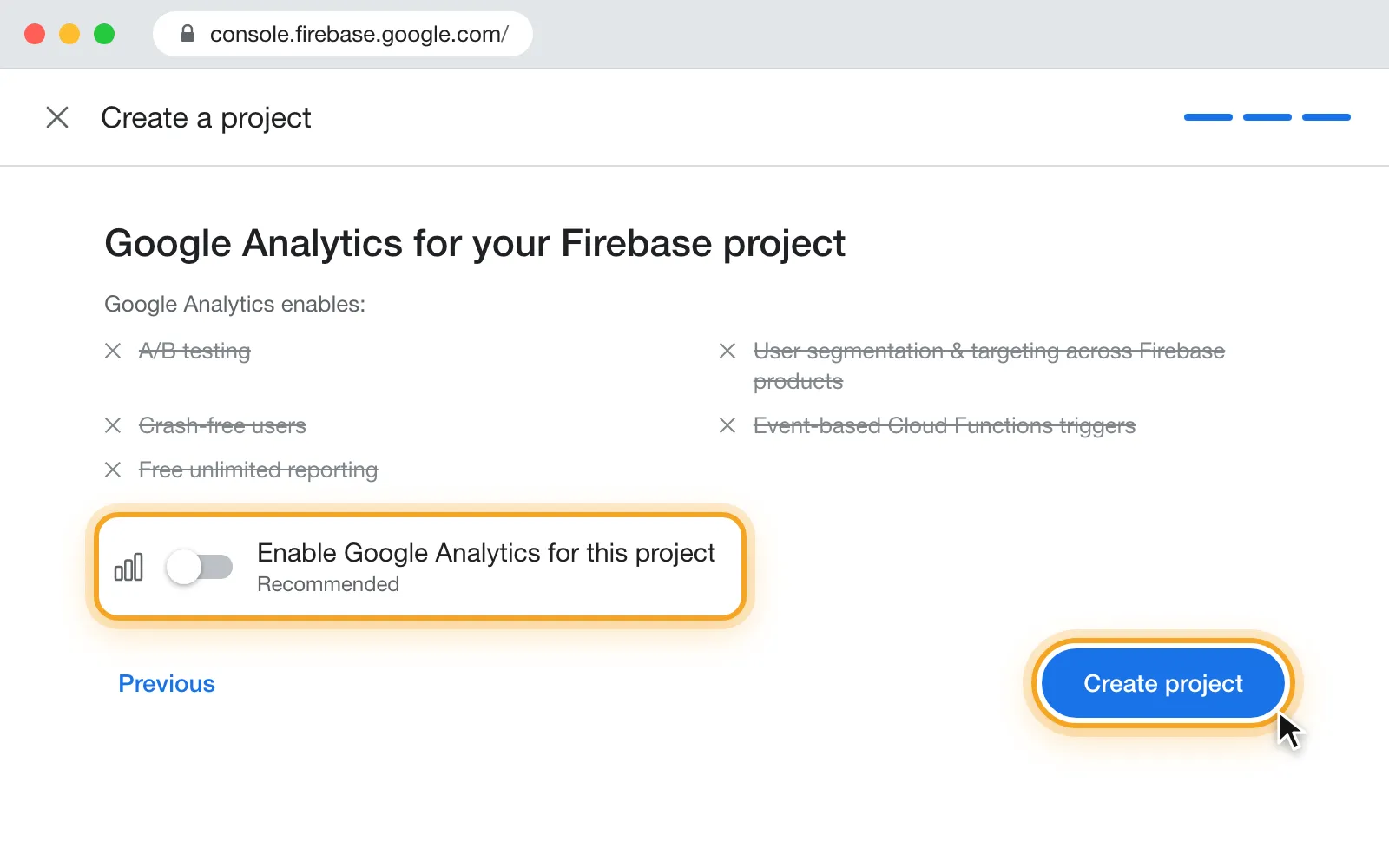
Skip the AI assistance step (Gemini in Firebase) with “Continue”. Then turn off “Enable Google Analytics for this project”, click “Create project” and, when the project is ready, “Continue”.
 (opens in a new tab)
On your project's page, click the </> icon (“Web”).
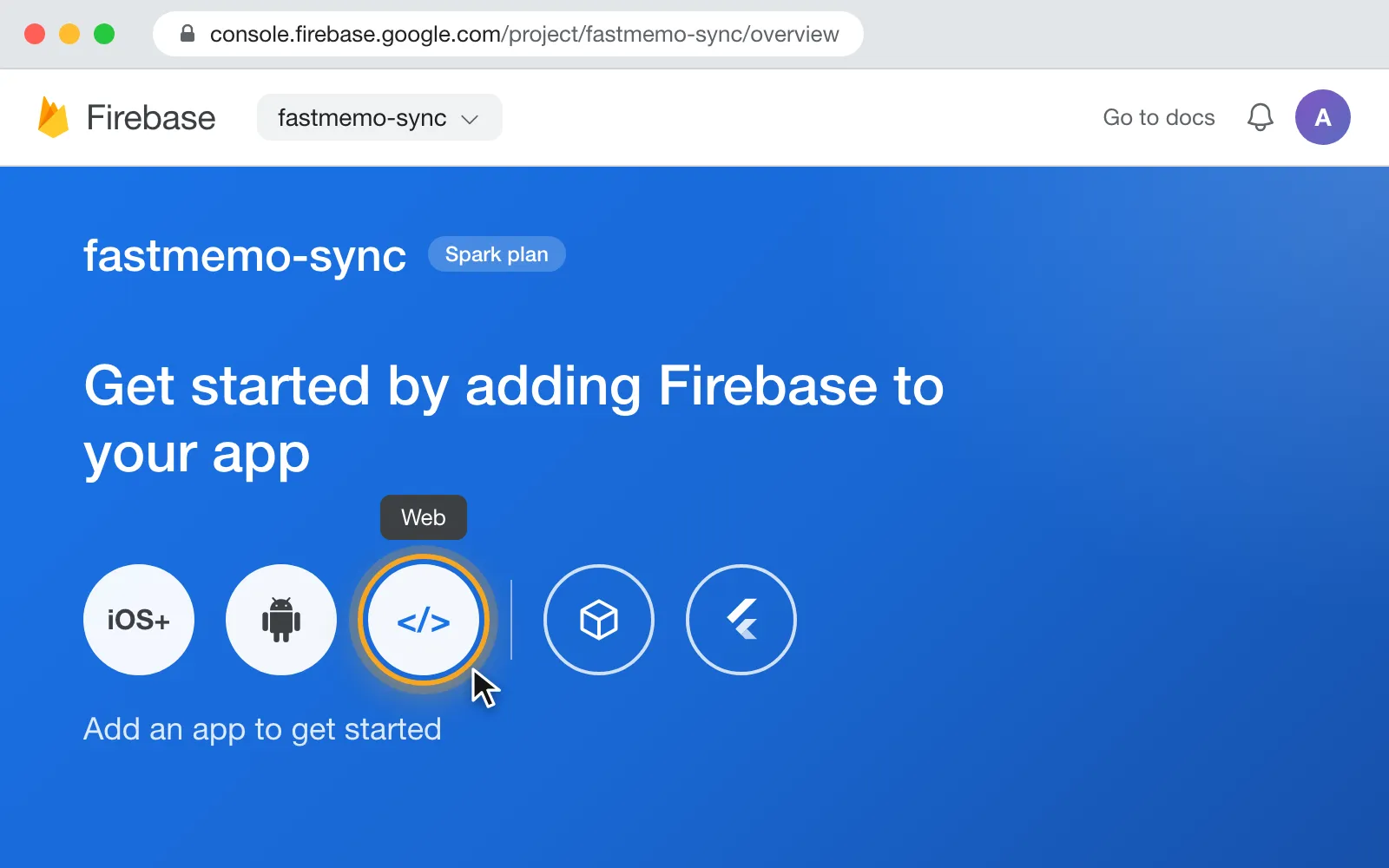 (opens in a new tab)
Give the app any nickname (e.g. “Fast Memo”), leave Firebase Hosting unchecked and click “Register app”.
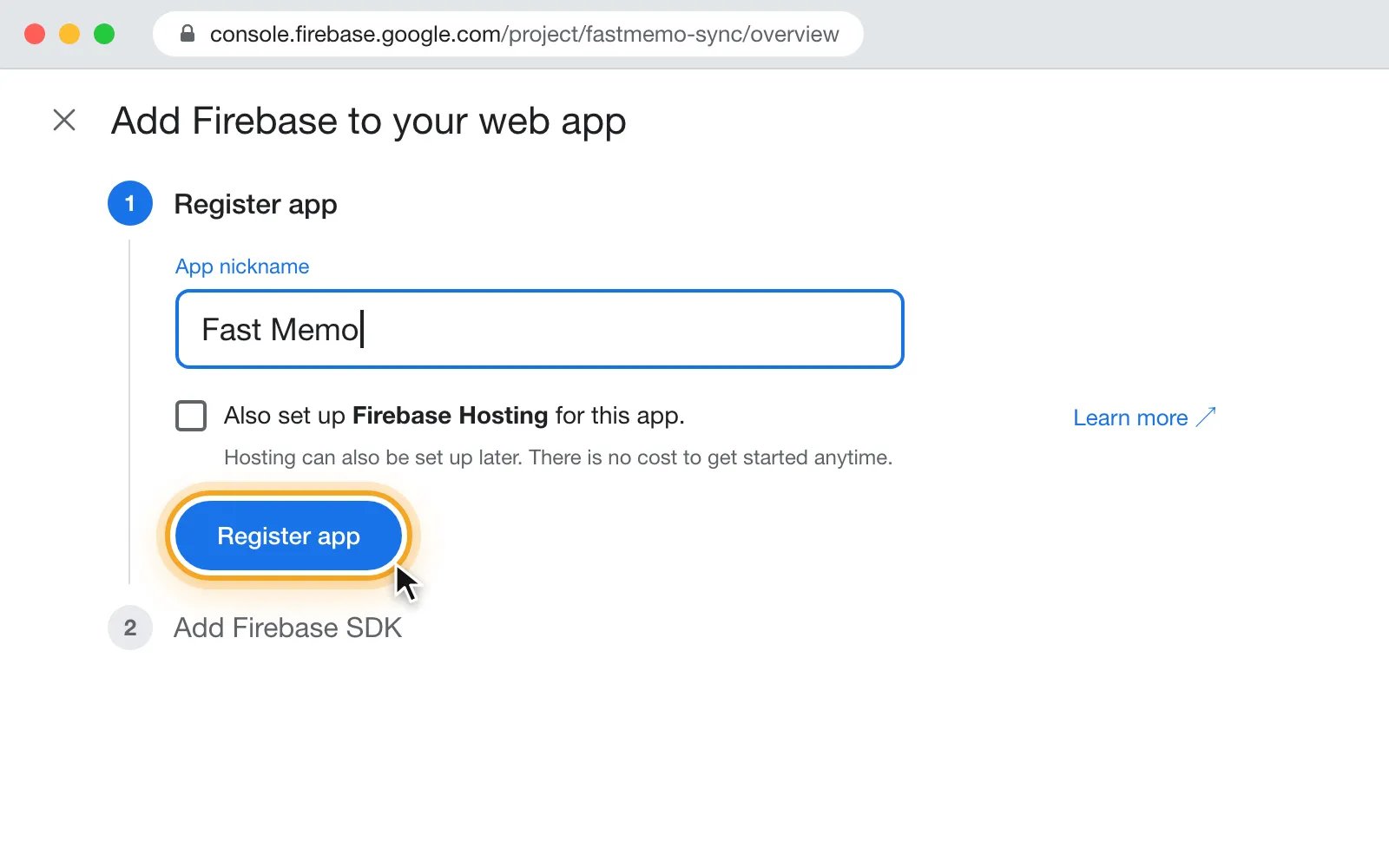 (opens in a new tab)
Firebase now shows your app's configuration. Fast Memo needs three values from it: apiKey, projectId and appId. Keep them somewhere safe (you can always find them again in Project settings → General → Your apps), then click “Continue to console”.
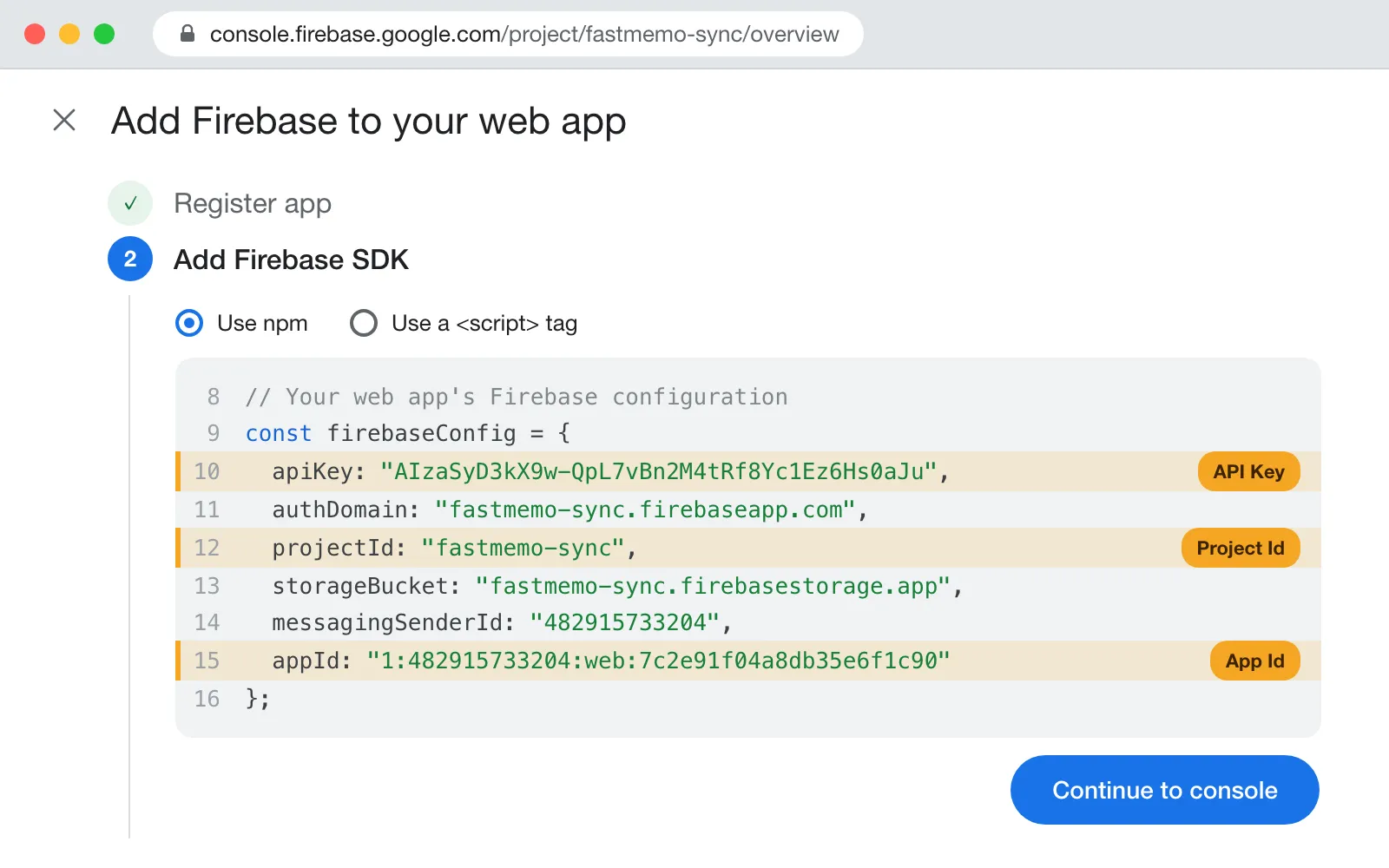 (opens in a new tab)
In the sidebar, open “Databases & Storage” → “Firestore”.
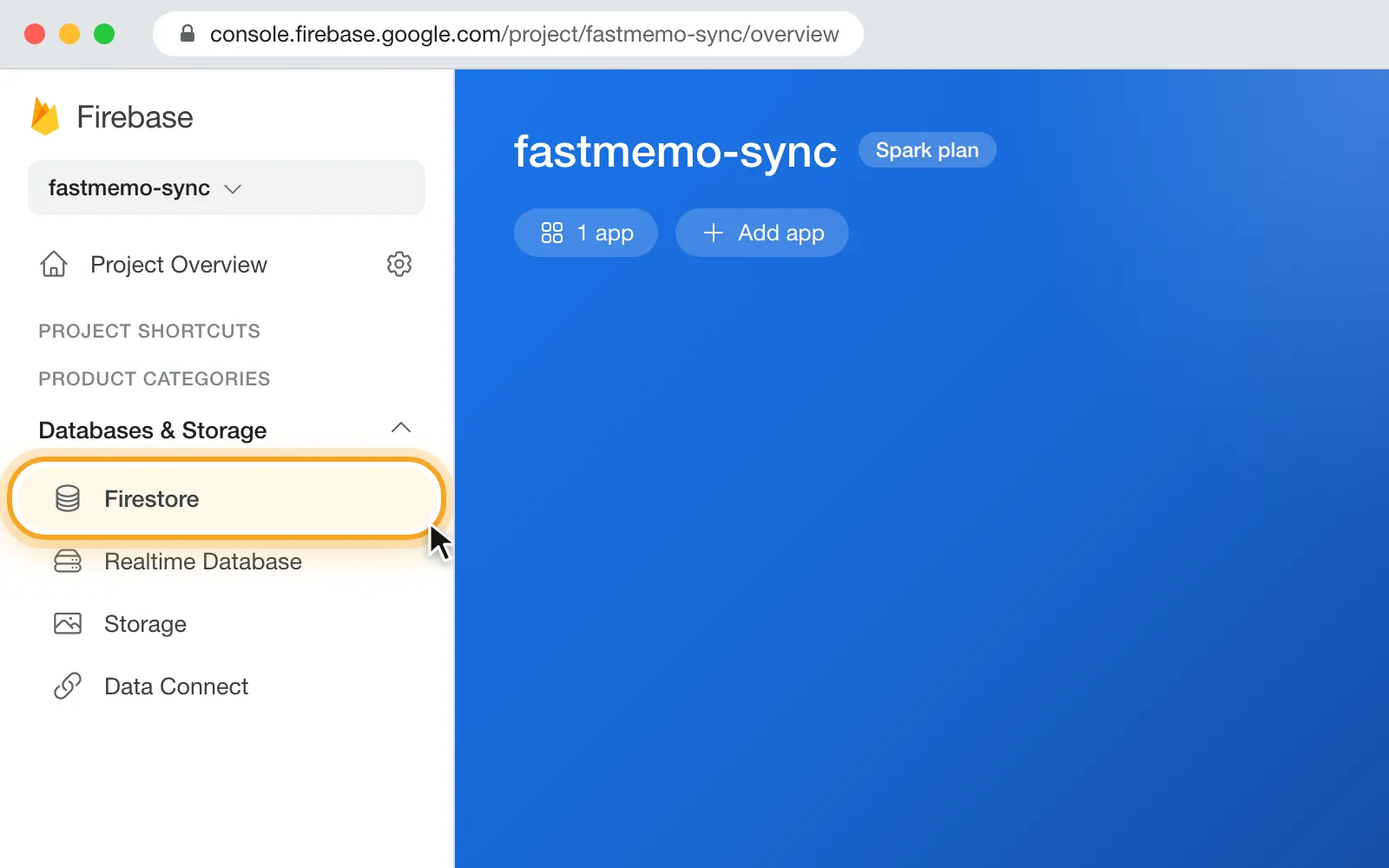 (opens in a new tab)
Click “Create database”.
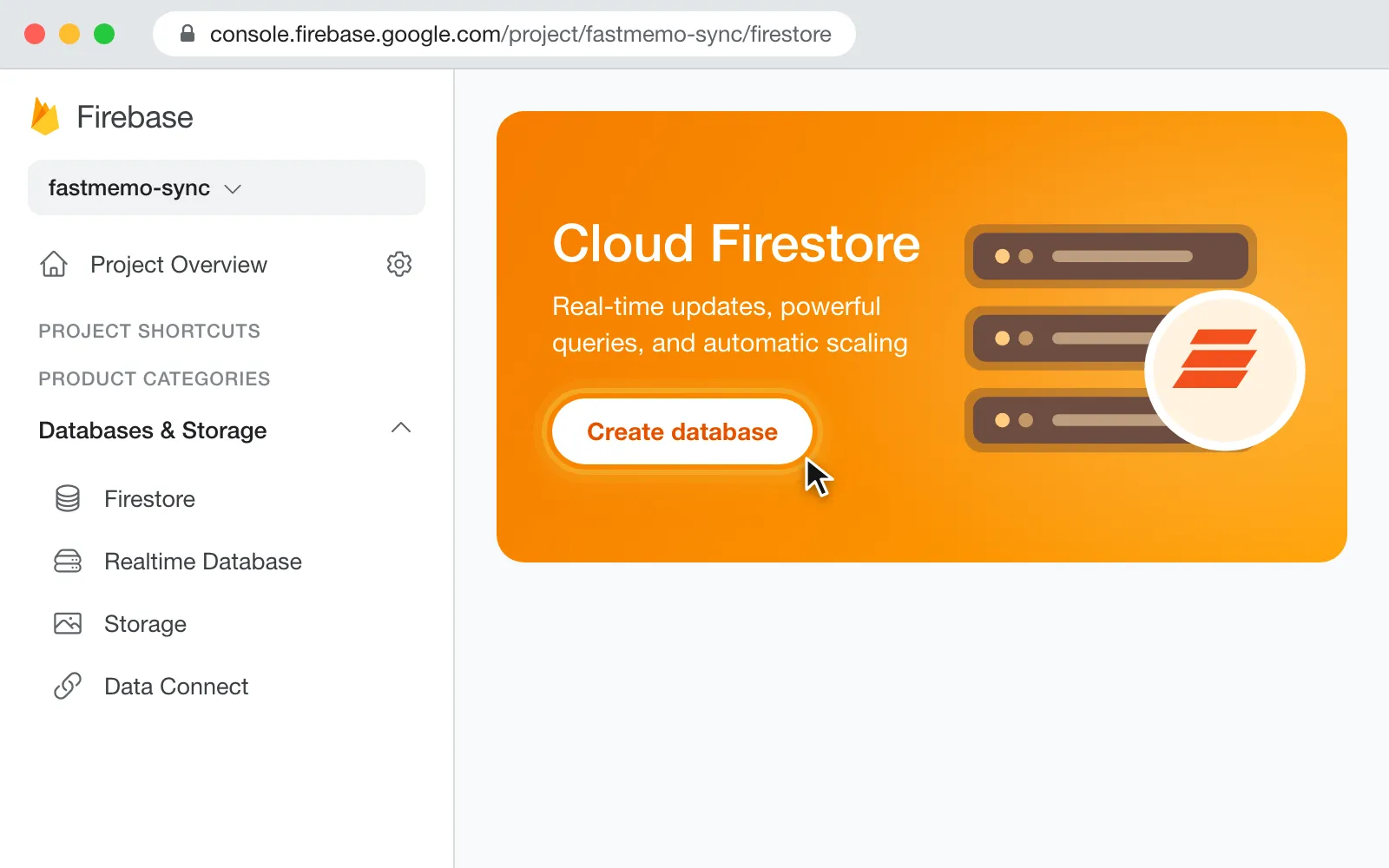 (opens in a new tab)
Leave the database ID as “(default)”, pick the location closest to you (e.g. “eur3 (europe-west)” if you live in Europe) and click “Next”. Then select “Start in production mode” and click “Create”.
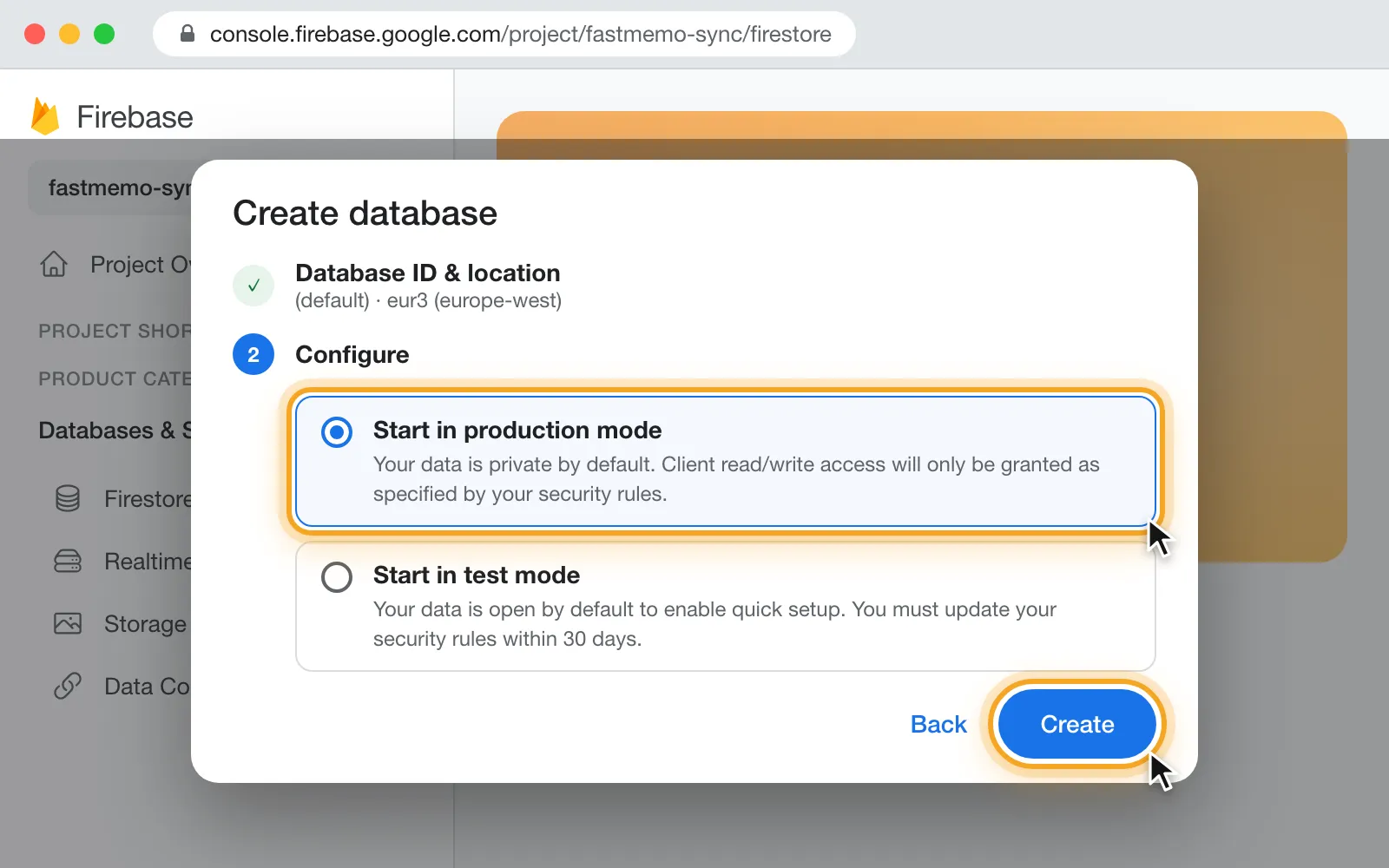 (opens in a new tab)
When the database is ready, open the “Rules” tab, change “allow read, write: if false;” to “allow read, write: if true;” and click “Publish”. You'll always find Firestore in the sidebar, under “Project shortcuts”.
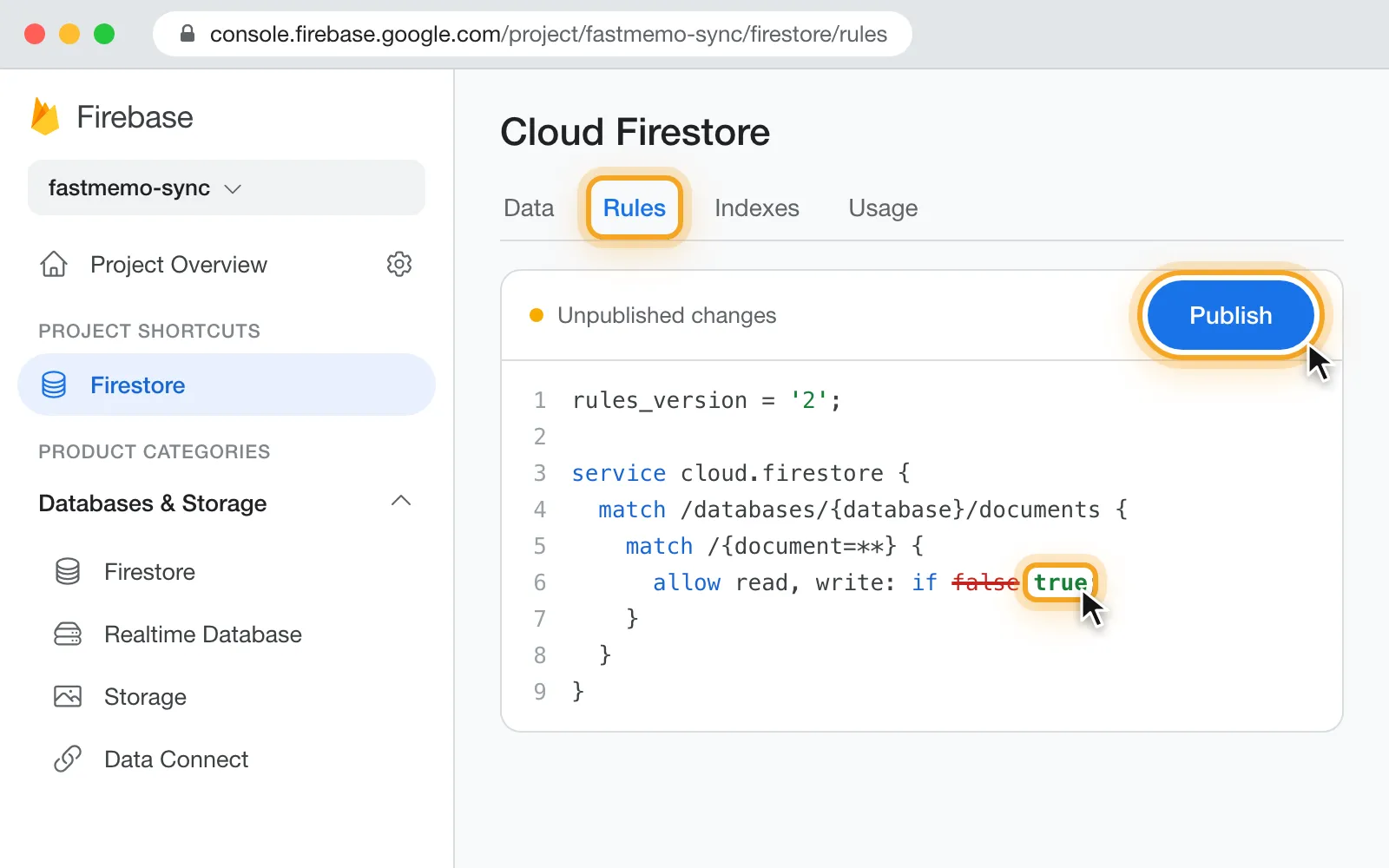 (opens in a new tab)
Now connect Fast Memo: open the app, go to Settings → Cloud Sync and turn on “Enable Cloud sync” (it may ask for your secret code). Choose “Google Firebase”, paste the API Key, Project Id and App Id from step 7 and tap “Save settings”. Then set your encryption password (see the next section): from then on your notes and categories stay in sync, in real time, on every device you connect.
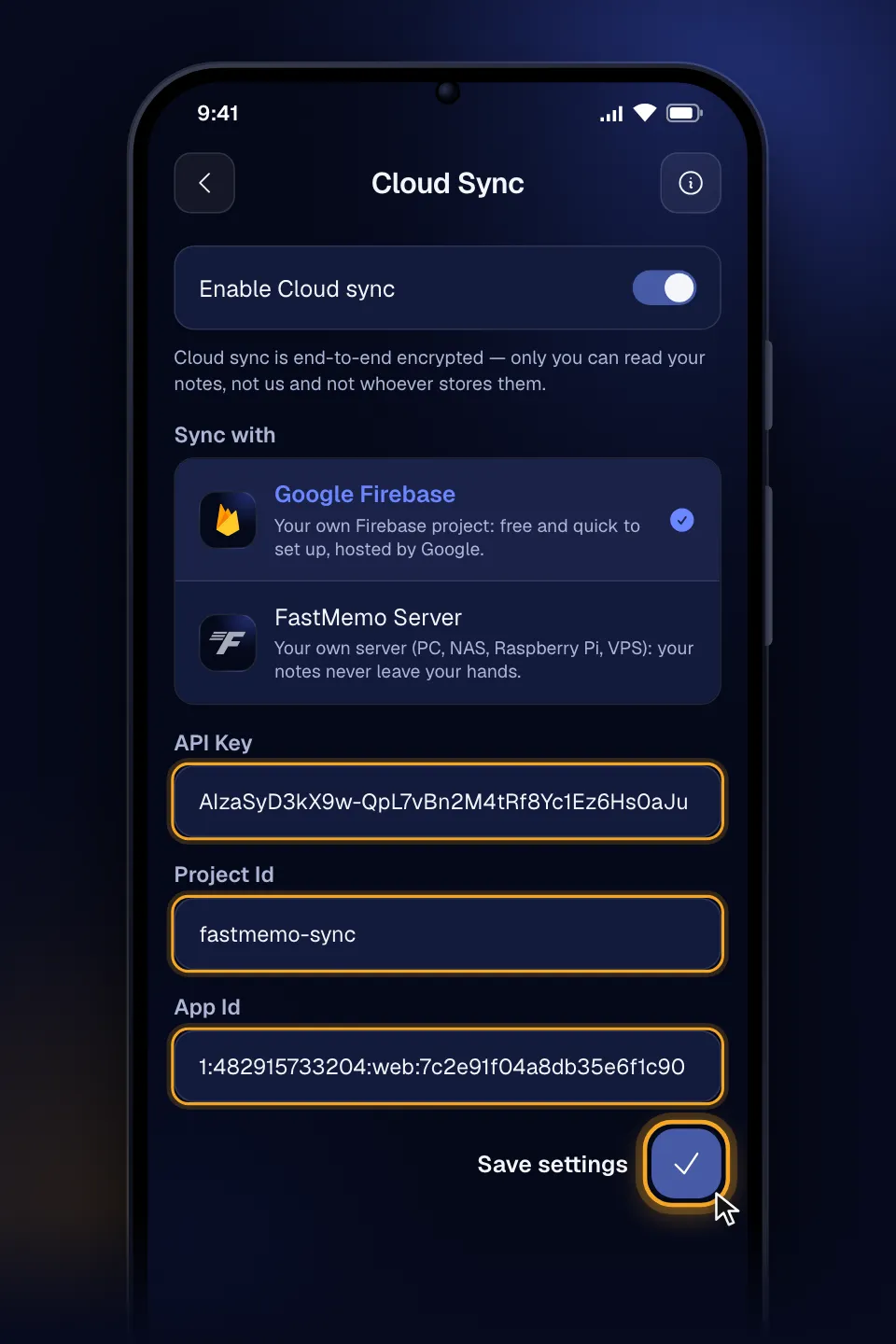 (opens in a new tab)
Important Note: Remember that you are responsible for the data on Google Firebase, as data management is autonomous. Any data loss is not attributable to the creator of Fast Memo.
Securing your vault with end-to-end encryption
Once Cloud Sync is connected, Fast Memo protects your data with end-to-end encryption. Your note contents are encrypted on your device with a password that only you know, so Google — and anyone else — only ever sees unreadable data. Here's what to expect:
Set an encryption password. The first time you connect, you choose an encryption password. It never leaves your device and is the key that unlocks your notes.
Save your recovery key. During setup you're shown a one-time recovery key. Write it down and keep it somewhere safe — it's the only way back in if you ever forget your password.
Unlock each device once. Every device that joins enters the same password to unlock the vault. After that the key is stored securely on the device, so you don't have to re-enter it at every launch.
Forgot your password? Use your recovery key to set a new one without losing any notes. As a last resort you can reset the encryption, which rebuilds the vault from the notes currently on your device.
Quick backup: Before a large sync or resetting your encryption, the setup, unlock and reset screens offer an optional Quick backup button. It exports a passphrase-protected file of your notes straight from your device — an extra safety net that works independently of the cloud. Your notes always stay on your device regardless.
Optional Steps
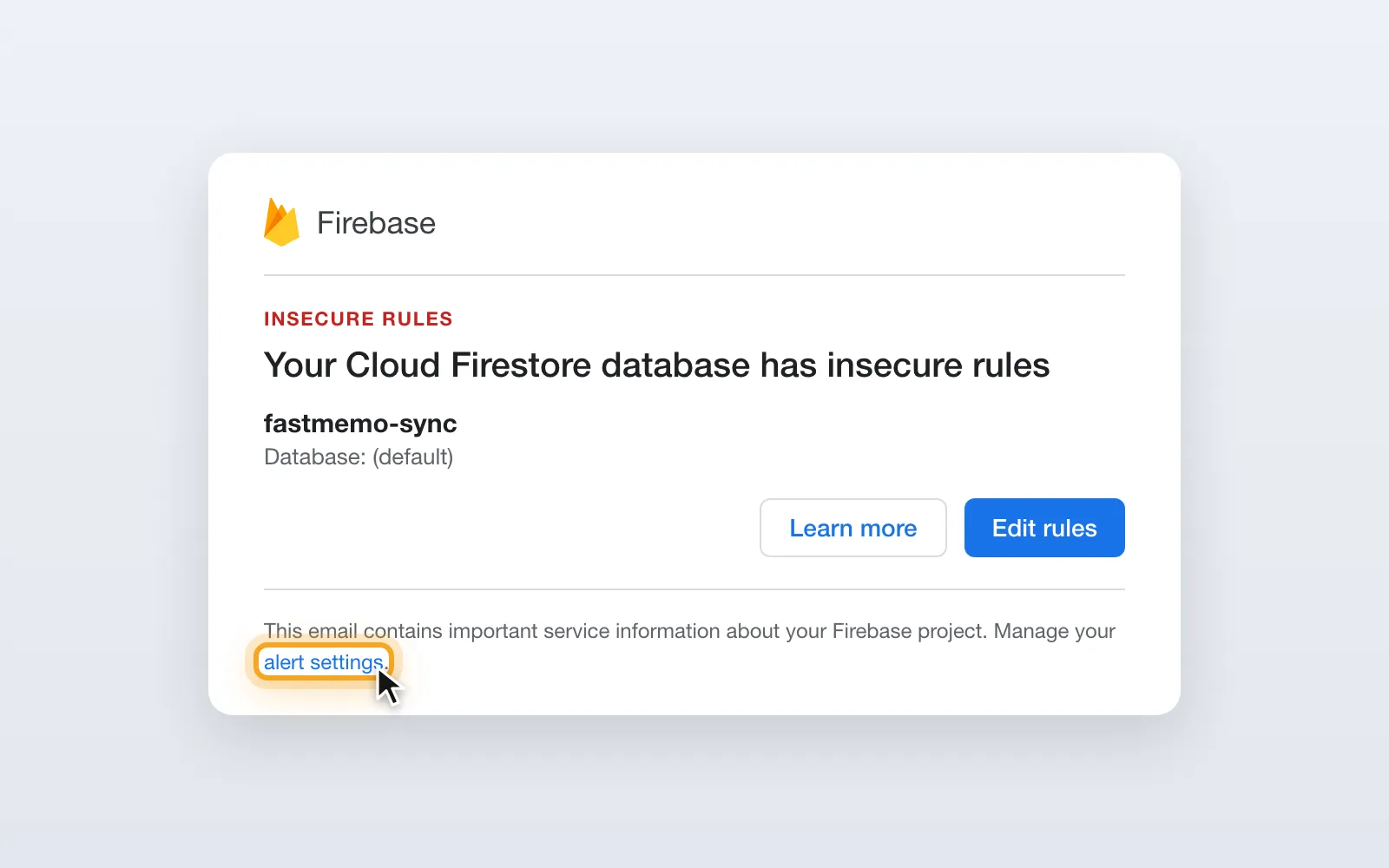
Firebase will warn you by email that the rules are open, as set in step 11. To stop these emails, open your alert settings (opens in a new tab).
 (opens in a new tab)
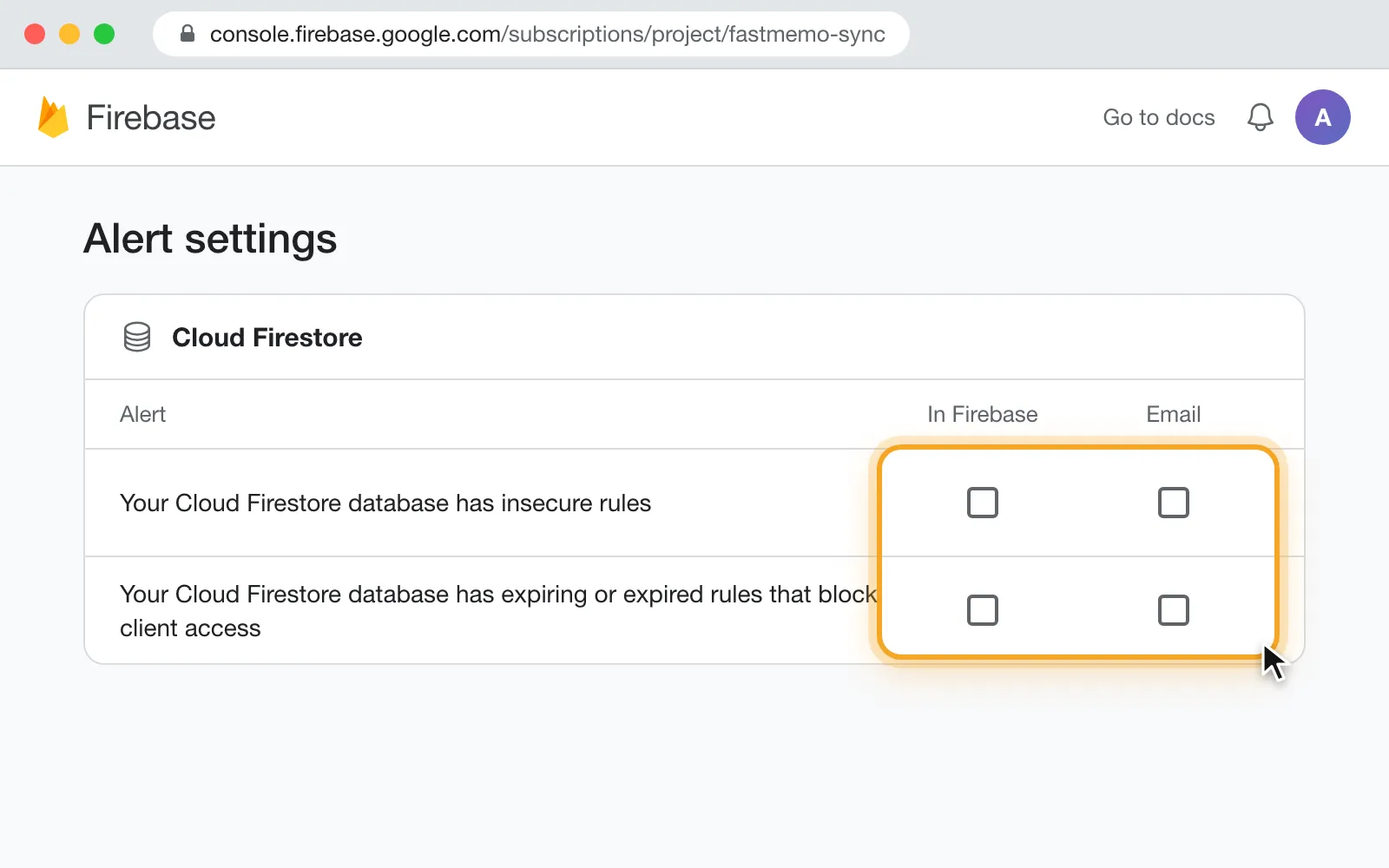
In the “Cloud Firestore” section, untick all 4 boxes (“In Firebase” and “Email” for both alerts).
 (opens in a new tab)